How to Use Our Free Tools
Complete step-by-step guides for merging, splitting, converting, securing, and transforming Excel files and PDFs. Every feature explained in detail with pro tips.
Spreadsheet Merging & Splitting
File Conversions (PDF, OCR, PPT, CSV, JSON)
Data Cleaning & Manipulation
Security & File Size
Formulas & Lookup Automation
Merge Excel Files Online
Combine multiple Excel spreadsheets (XLS, XLSX, CSV) into one consolidated master workbook with intelligent column matching, conflict resolution, and 100% browser-based privacy.
Drag and drop or click to select your files
Start by uploading two or more Excel files using the drag-and-drop zone on the home page. You can upload XLS (Excel 97-2003), XLSX (Excel 2007+), and CSV files — and even mix different formats in a single merge. Files are listed below the upload zone with their name, size, and detected sheets. You can reorder files by dragging the grip handle, or remove individual files with the delete button.
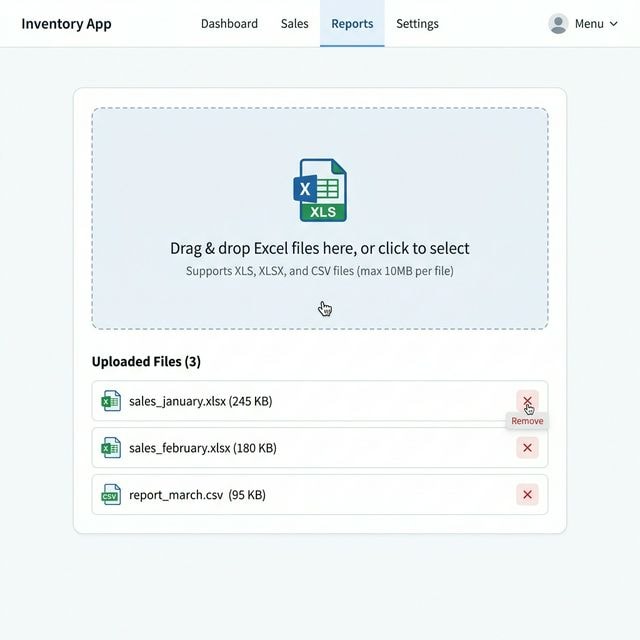
You can upload files from different sources — sales reports, survey responses, database exports — as long as they are in XLS, XLSX, or CSV format.
Select how you want your files to be combined
On the right side panel, select one of three merge modes: Single Spreadsheet stacks all data into one continuous sheet, perfect for combining similar data. Multiple Sheets places each uploaded file as a separate tab in one workbook, ideal for organizing data by source. Selective Merging lets you pick specific sheets from each uploaded workbook — great when files contain multiple sheets but you only need certain ones.
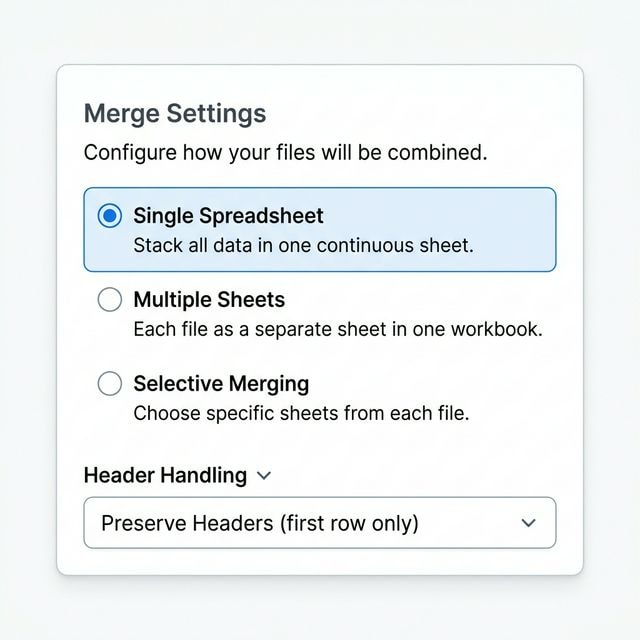
Use Single Spreadsheet when all files share the same column structure (e.g., monthly sales reports). Use Multiple Sheets when you want to keep data separated by source file.
Fine-tune header handling, data range, and formatting
Customize how your merge works with advanced options. Choose Header Handling to control how column headers are treated — preserve only the first row's headers, add sheet name labels to identify data source, or skip header handling entirely. Set a custom Data Range by specifying start and end cells (e.g., A1 to Z1000) to merge only a portion of each file. Enable Preserve Formatting to keep original cell styles, colors, and formatting in the merged output.
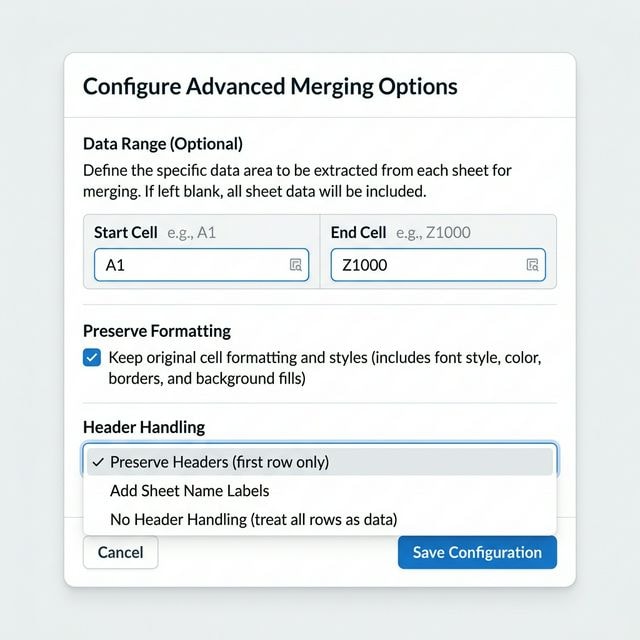
If your files have headers in the first row, always use 'Preserve Headers' to avoid duplicate header rows in the merged output.
Smart matching helps align different column structures
When merging in Single Spreadsheet mode, the tool automatically analyzes column headers across all files. If columns do not match exactly — for example, 'Customer Name' in one file and 'Client Name' in another — a Column Mismatch dialog appears. You can map columns manually using dropdown menus, or click Continue As Is to merge without remapping. The tool suggests the best matches automatically.
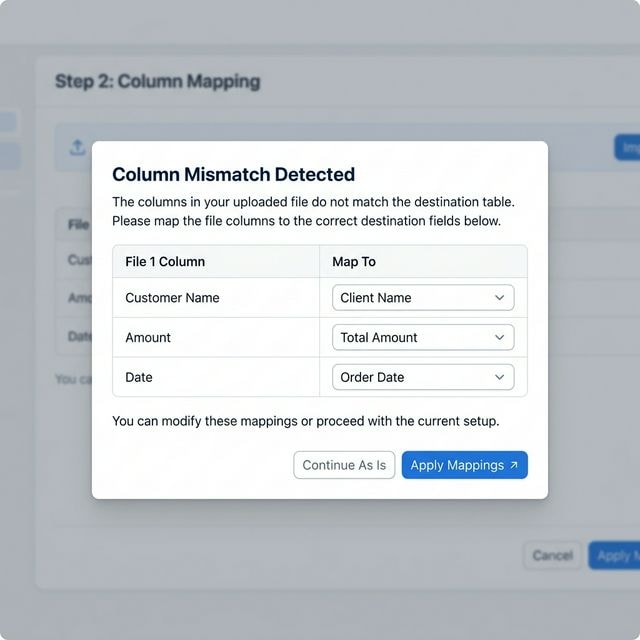
Column conflict resolution only appears in Single Spreadsheet mode. If you want to avoid conflicts entirely, use Multiple Sheets mode instead.
Choose which sheets to include from multi-sheet workbooks
When you upload Excel files with multiple sheets, the Sheet Selection panel appears below the merge options. For each file, you can check or uncheck individual sheets to include or exclude them from the merge. Use the All and None buttons for quick selection. Unchecked sheets will be skipped entirely during the merge process.
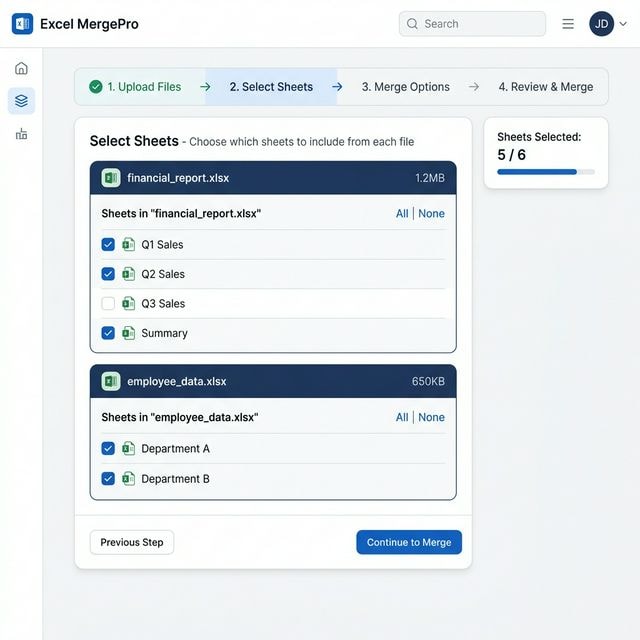
This is especially useful when workbooks contain summary sheets, charts, or metadata sheets that you do not want in the merged output.
Click merge and get your combined file instantly
Once everything is configured, click the Merge Files button. The tool processes all your files locally in your browser — nothing is uploaded to any server. When the merge completes, a green success banner appears and the Download button becomes active. Click Download to save your merged XLSX file. You can also share the tool with colleagues using the social sharing buttons below.

The output is always saved as a modern XLSX file for maximum compatibility with Excel, Google Sheets, and other spreadsheet applications.
Single Spreadsheet
Stacks all data from every file into one continuous sheet. Ideal for combining files with the same column structure — like monthly reports, survey batches, or regional data exports. Headers are preserved from the first file, and smart column matching aligns data automatically.
Best for: Monthly reports, survey data, similar-structure exports
Multiple Sheets
Places each uploaded file as a separate named tab within a single workbook. The original data structure of each file is preserved completely. This is perfect when you want to consolidate files into one workbook without mixing the data together.
Best for: Organizing files by source, archiving multiple reports
Selective Merging
Gives you full control over which sheets from each workbook are included in the merge. Upload multi-sheet Excel files and hand-pick only the sheets you need. Unselected sheets are skipped entirely.
Best for: Multi-sheet workbooks, extracting specific data
How to Merge CSV Files Online
Seamlessly combine multiple CSV, TSV, and text files into one clean, consolidated master file. Features intelligent column alignment, drag-to-reorder, and 100% private browser-based processing.
Drag and drop multiple CSV files into the merger zone
Start by dragging and dropping two or more CSV, TSV, or text files into the upload area. The tool parses headers, line delimiters, and row counts instantly without uploading data to external servers.
You can merge CSV files alongside XLS and XLSX spreadsheets seamlessly in a single merge operation.
Drag files up or down to set row sequence
Reorder your files by dragging them up or down in the file queue. The order in the list directly determines which file's records appear first in the combined master dataset.
Useful for chronological datasets like monthly billing exports, quarterly invoices, or server access logs.
Automatic header matching across different column layouts
Our engine aligns columns by header name, not by column position. If file A has "Email" in column 1 and file B has "Email" in column 4, the data aligns perfectly. Any mismatched headers can be linked with the interactive column mapping dialog.
If column headers have slight variations (e.g., "Full Name" vs "Name"), map them together in one click to unify them.
Download as a single CSV file or formatted Excel workbook
Choose your desired output format: a single clean CSV file ready for database or API import, or an XLSX workbook for Microsoft Excel and Google Sheets. Click "Merge Files" to download instantly.
All processing under 15 MB runs locally inside your browser with zero latency and 100% data privacy.
Smart Header Matching
Columns align by header name regardless of column ordering in individual CSVs.
Auto Delimiter Detection
Supports commas, semicolons, tabs, and pipes in mixed files automatically.
Drag & Drop Reordering
Easily drag and drop to arrange the vertical order of merged data.
CSV & XLSX Output
Download as a unified CSV dataset or multi-sheet Excel workbook.
100% Client-Side Privacy
Files process in your browser via Web Workers without leaving your machine.
Large Volume Support
Merge dozens of CSV exports with hundreds of thousands of rows effortlessly.
How to Split Excel Files
Divide large Excel files into smaller workbooks with 9 customizable split modes: by row counts, worksheet tabs, unique column entries, file sizes, or date windows.
Drag and drop or click to upload XLS, XLSX, or CSV
Upload a single Excel or CSV file using the drag-and-drop zone. The tool inspects your sheets, row counts, and column structure locally.
For large files (50,000+ rows), client-side processing keeps your data completely secure on your machine.
Select the splitting logic that matches your workflow
Select from 9 specialized modes: By Fixed Rows, By File Count, By Sheet Tab, By Column Value (e.g., Region, Department), By Blank Rows, By File Size, By Formula Type, By Expression, or By Date Range.
Splitting by "Column Value" is perfect for dividing sales reports by representative, territory, or customer type.
Preview the resulting chunks before splitting
Use the Preview and Statistics tabs to inspect how the data will divide. Exclude blank lines, filter out unnecessary records, or save your settings as a reusable template.
The statistics tab gives you a bird's-eye view of row counts, unique values, and column distribution.
Download files separately or as a compressed archive
Click "Split Now" to process. When complete, download individual split files or click "Download All as ZIP" for a single packaged archive.
Each output file automatically receives an informative suffix based on your split rule.
By Fixed Rows
Split every N rows into equal chunks.
By File Count
Divide into N equal files.
By Sheet
Each sheet becomes a separate workbook.
By Column Value
Group rows by unique column entries.
By Blank Rows
Split at empty row separators.
By File Size
Limit each file size to meet upload limits.
By Formula Type
Separate formula rows from plain text.
By Expression
Custom rules for power users.
By Date Range
Group rows by month, quarter, or year.
File Format Converters
Convert PDF, scanned images, PowerPoint presentations, CSV, and JSON into Excel spreadsheets with zero data loss.
How to Convert PDF to Excel
Extract digital tables from PDF invoices, bank statements, and reports into clean, formula-ready XLSX or CSV files.
Drag and drop or select a PDF document
Upload standard or password-protected PDF files up to 50 MB. If password-protected, a prompt allows you to enter the decryption key instantly.
💡 PDFs with native digital tables convert with the highest precision. For scanned photos, use Image to Excel (OCR).
Choose Auto, Table Mode, or Lines Mode
Select Table Mode for structured financial statements, or Auto Mode for mixed text and tables. Customize delimiters, page ranges, and whether each PDF page becomes its own sheet tab.
💡 Enable "Sheet per Page" to keep multi-page PDF statements cleanly partitioned in your spreadsheet.
Verify row and column boundaries before converting
Click Preview to inspect the tabular grid, verify column separations, and check row alignments before creating the final document.
💡 Verify number formats in the preview to ensure monetary and percentage values align cleanly.
Download ready-to-use Excel workbook
Click "Convert Now" to extract the data into an Excel (.xlsx) workbook or plain text CSV file. Compatible with Excel, Google Sheets, and LibreOffice.
💡 Output files preserve numerical types so mathematical formulas like SUM and AVERAGE work immediately.
How to Convert Images to Excel (OCR)
Digitize photos, screenshots, and paper scans into editable spreadsheets using optical character recognition in 20+ languages.
Supports PNG, JPG, JPEG, WebP, BMP, and TIFF
Upload photos of physical invoices, spreadsheet screenshots, paper receipts, or scanned documents. Batch upload multiple images at once.
💡 High-contrast images with clean lighting produce the most accurate OCR character recognition.
Choose from 20+ languages and enhancement filters
Select your document language (English, Hindi, German, French, Spanish, Japanese, Chinese, etc.). Toggle image pre-processing (contrast auto-boost and Otsu binarization) for crisp text detection.
💡 Enable Auto-Upscale for small or low-resolution screenshots to sharpen small numbers and decimals.
Inspect cell confidence and edit errors directly
Tesseract.js identifies table boundaries and colors cells by accuracy: Green (high confidence), Yellow (review recommended), and Red (low confidence). Click any cell to fix typos directly.
💡 Quickly scan red cells to fix misinterpreted characters (like 0 vs O or 1 vs l) before downloading.
Save as XLSX with optional sheet-per-image tabs
Download your digitized data as a polished XLSX workbook or CSV. Multi-image uploads can be merged into a single sheet or split into separate tabs.
💡 All OCR processing happens entirely in your browser memory — no sensitive photos are uploaded to any cloud.
Convert CSV and TSV text files into styled, formatted Microsoft Excel workbooks with custom delimiters and automatic data-type detection.
Step-by-Step Instructions
- Step 1Upload your CSV, TSV, or comma-separated text file.
- Step 2Select delimiter (comma, semicolon, tab, pipe) and character encoding (UTF-8, Windows-1252).
- Step 3Preview column formatting, date recognition, and number parsing.
- Step 4Download the converted XLSX spreadsheet formatted for Microsoft Excel and Google Sheets.
Export Excel workbooks (XLS, XLSX) to clean, standard CSV text files for databases, CRM platforms, and data science pipelines.
Step-by-Step Instructions
- Step 1Upload your Excel spreadsheet (XLS, XLSX, XLSM).
- Step 2Select which worksheet tab you want to export to CSV.
- Step 3Choose your preferred field delimiter (comma, semicolon, tab) and quote escaping rules.
- Step 4Download the clean UTF-8 CSV file ready for database or system imports.
Transform spreadsheet rows into clean JSON arrays, nested key-value dictionaries, or API payloads with native type preservation.
Step-by-Step Instructions
- Step 1Upload your Excel or CSV file via the dropzone.
- Step 2Select output structure: Flat Array (for APIs), Sheet Dictionary, or Nested Objects (dot notation like user.name).
- Step 3Choose indentation (2-space pretty or minified) and empty-cell handling (omit, null, or empty string).
- Step 4Download the generated JSON file or copy it directly to your clipboard.
Convert JSON arrays, API responses, or JSON files into tabular Excel workbooks (.xlsx) with flattened nested properties.
Step-by-Step Instructions
- Step 1Paste your JSON payload or upload a .json file.
- Step 2Configure flattening depth for nested JSON objects and array handling.
- Step 3Preview the tabular structure with detected column headers.
- Step 4Download your structured Excel or CSV file ready for analysis.
Extract presentation tables, bulleted lists, and slide text from PPT and PPTX slideshows into organized spreadsheet rows.
Step-by-Step Instructions
- Step 1Upload your PowerPoint slideshow (.pptx, .ppt).
- Step 2Select extraction target: Slide Tables Only or All Slide Content.
- Step 3Choose whether each slide is placed into a separate sheet tab or unified into one sheet.
- Step 4Download your structured Excel file with all presentation data cataloged.
Data Cleaning & Manipulation
Diff spreadsheets, remove duplicate entries, concatenate multi-column records, and automate mail merges.
Compare two Excel spreadsheets side by side to instantly highlight modified cell values, inserted rows, and deleted data.
Step-by-Step Instructions
- Step 1Upload your Original (Base) file and your Modified (Comparison) file.
- Step 2Select which sheets to compare and match primary key columns (e.g. ID, SKU, Email).
- Step 3Review the visual color-coded diff: Green for additions, Red for deletions, and Yellow for modified values.
- Step 4Export a detailed difference report listing every change with cell coordinates.
Identify, highlight, and purge duplicate entries in Excel and CSV files with customizable column matching rules.
Step-by-Step Instructions
- Step 1Upload your Excel or CSV dataset.
- Step 2Choose which columns to check for duplicates (e.g. Email, Phone, or All Columns).
- Step 3Select your retention strategy: Keep First occurrence, Keep Last occurrence, or Remove All duplicates.
- Step 4Download your deduplicated dataset with an optional audit sheet of removed rows.
Merge two or more columns into a single consolidated column with custom delimiters, prefixes, and suffixes.
Step-by-Step Instructions
- Step 1Upload your Excel or CSV file.
- Step 2Select the columns you wish to join (e.g. "First Name" and "Last Name").
- Step 3Choose a separator (Space, Comma, Dash, Slash, or custom character).
- Step 4Preview the concatenated column and download the updated spreadsheet.
Generate customized letters, emails, and invoices from Excel rows using rich {{tags}} and conditional formatting.
Step-by-Step Instructions
- Step 1Upload your spreadsheet with recipient or customer records.
- Step 2Design your template in the rich editor with {{ColumnName}} tags, dynamic QR codes, and {{#if}} conditional blocks.
- Step 3Cycle through live previews to verify each personalized record.
- Step 4Generate and download all personalized documents as TXT, HTML, or PDF in a single ZIP file.
Security, Encryption & Compression
Reduce bloated Excel file sizes and secure sensitive spreadsheets with AES password protection.
Shrink bloated Excel (.xlsx) file sizes by optimizing internal XML structures, stripping unused metadata, and compressing images.
Step-by-Step Instructions
- Step 1Upload your oversized Excel file.
- Step 2Choose your compression level: Balanced (recommended) or Maximum compression.
- Step 3The optimizer strips unused styles, clears ghost formatting ranges, and compresses embedded images.
- Step 4Download your slimmed-down workbook with 100% of data and formulas preserved.
Protect confidential spreadsheets with military-grade 128-bit / 256-bit AES encryption before emailing or storing them.
Step-by-Step Instructions
- Step 1Upload the Excel workbook you wish to protect.
- Step 2Enter and confirm a strong password.
- Step 3Select encryption standard (Standard or High Security AES-256).
- Step 4Download your encrypted workbook. It cannot be opened or viewed without the password.
Remove password protection from encrypted Excel files when you have the password, producing an unprotected copy.
Step-by-Step Instructions
- Step 1Upload your password-protected Excel file (.xlsx).
- Step 2Enter the document decryption password.
- Step 3The tool unlocks the file in your browser and decrypts the spreadsheet streams.
- Step 4Download the unlocked, unrestricted Excel file ready for editing and sharing.
Lookup Automation Suite
Automate VLOOKUP, XLOOKUP, HLOOKUP, INDEX MATCH, multi-criteria joins, and fuzzy typo matching without writing formulas.
Perform instant vertical lookups between two tables without writing complex VLOOKUP formulas or dealing with #N/A errors.
Step-by-Step Instructions
- Step 1Upload your Primary table and Lookup table.
- Step 2Select the Lookup Column (the key to search for) and the Return Column (the data you want to retrieve).
- Step 3Choose exact match or approximate match.
- Step 4Download your enriched spreadsheet with the matched data joined seamlessly.
Modern 2-way lookups: search left, right, top, or bottom with automatic fallback values and exact matching.
Step-by-Step Instructions
- Step 1Upload your datasets.
- Step 2Select your search key and target columns (works in any direction, even searching to the left).
- Step 3Set fallback values for unmatched records (e.g. "Not Found" or 0).
- Step 4Download your merged spreadsheet with high-speed 2-way lookups applied.
Horizontal table lookups: search along a row and retrieve corresponding values from rows below.
Step-by-Step Instructions
- Step 1Upload your horizontal spreadsheet table.
- Step 2Choose the header row to search and the data row to retrieve.
- Step 3Specify match sensitivity.
- Step 4Download your transposed and looked-up dataset.
Dynamic 2-dimensional lookups matching both row headers and column headers simultaneously.
Step-by-Step Instructions
- Step 1Upload your matrix or 2D table.
- Step 2Set your vertical row lookup criteria and horizontal column criteria.
- Step 3The tool performs a dynamic matrix intersection lookup.
- Step 4Download the looked-up results with zero formula errors.
Join tables based on multiple matching conditions (e.g. First Name AND Last Name AND Department).
Step-by-Step Instructions
- Step 1Upload both spreadsheets.
- Step 2Select multiple matching key pairs (e.g. Key 1: Customer ID, Key 2: Order Date).
- Step 3The engine joins rows only when ALL specified criteria match simultaneously.
- Step 4Download the multi-condition merged master table.
Approximate string matching: connect tables even when names, companies, or addresses contain typos and misspellings.
Step-by-Step Instructions
- Step 1Upload both datasets.
- Step 2Select the text columns to compare (e.g. Company Name or Client Name).
- Step 3Adjust the similarity threshold (e.g. 85% match tolerance).
- Step 4Review matched pairs with similarity scores and export the reconciled table.
Pro Tips for Best Results
Ensure all files use the same column order and naming for cleanest Single Spreadsheet merges.
Large files? Close other browser tabs to free up memory for faster processing.
Reorder files by dragging the grip handle — the merge order matches the file list order.
You can mix XLS, XLSX, and CSV files in a single merge operation.
All processing happens in your browser — your files never leave your device.
Use the Data Range option to skip header rows or footer notes in messy spreadsheets.